PSU Coil Whine: How to Diagnose and Fix It
You're playing a game late at night when a thin squeal suddenly rises from the PC. It changes as the scene changes, disappears when you leave the game, and seems to come from the power supply. That's enough to make any new PC owner wonder whether the PSU is about to fail.
The reassuring answer is that PSU coil whine usually isn't a sign of imminent failure. It's an audible vibration caused by electronic components, although the sound can be irritating and it can sometimes come from the GPU or motherboard instead. The sensible response isn't panic or a random upgrade. It's a safe process: identify the source, compare the sound with the system's load, check for genuine warning signs, and then decide whether to tolerate, reduce, or replace it.
If you're still choosing a gaming system, matching the power supply, graphics card, case, and cooling to the intended workload can also reduce avoidable surprises. This practical gaming PC selection guide provides useful context before you start troubleshooting noise.
Table of Contents
What Causes PSU Coil Whine - Why the sound is sharper than fan noise - Why the PSU may not be the source
How to Diagnose Coil Whine Safely - Change one workload at a time
Why a Bigger PSU May Not Fix It - Efficiency labels aren't silence guarantees - Use a mitigation ladder
When to Use Your Warranty or RMA - Build a useful support record - Describe the requested remedy
That High-Pitched Squeal From Your PC
The first clue is the character of the sound. Coil whine is usually sharp, tonal, and electronic, like a squeal, chirp, buzz, or whistle. Fan noise sounds more like moving air, while a worn fan bearing tends to produce a rough rattle or grind that follows fan speed.
A quiet desktop can make the noise seem worse than it is. During a game, your attention is focused elsewhere and the fans may mask the tone. At the desktop, a faint electronic sound can suddenly become obvious. The fact that it appears during gaming, menu screens, or changing workloads doesn't automatically mean the PSU is being damaged.
Start by noticing when the noise appears. Does it begin only when a game loads? Does its pitch shift when the frame rate changes? Does it remain present while the computer sits at the desktop? Those observations are more useful than judging loudness from a single moment.
First principle: A sound is a symptom to identify, not a diagnosis by itself.
For now, keep using your ears as a rough guide, but don't put your face against the rear of the PSU and don't touch anything inside the case while the computer is running. The safest investigation changes one condition at a time and records what happens.
The rest of this guide will help you decide whether you're hearing harmless component vibration, fan noise, GPU coil whine, or a combination of noise and an actual electrical problem. Above all, you'll have a clear point at which to stop testing and contact the manufacturer or retailer.
What Causes PSU Coil Whine
A PSU contains magnetic components, including inductors and transformers, that help convert and regulate electrical power. These parts contain windings and magnetic cores. When alternating or pulse-wave current passes through them, the changing magnetic field can make the core expand and contract slightly. This effect is called magnetostriction.
The movement is tiny, but tiny movement can still create sound. If the vibration reaches a frequency your ears can detect, the component behaves like a small mechanical sound source. Technical documentation from TDK's explanation of acoustic noise in inductors identifies audible vibration when switching currents contain frequencies in the human hearing range, approximately 20 Hz to 20 kHz, with reported coil-whine measurements commonly concentrating around 1 kHz to 20 kHz.
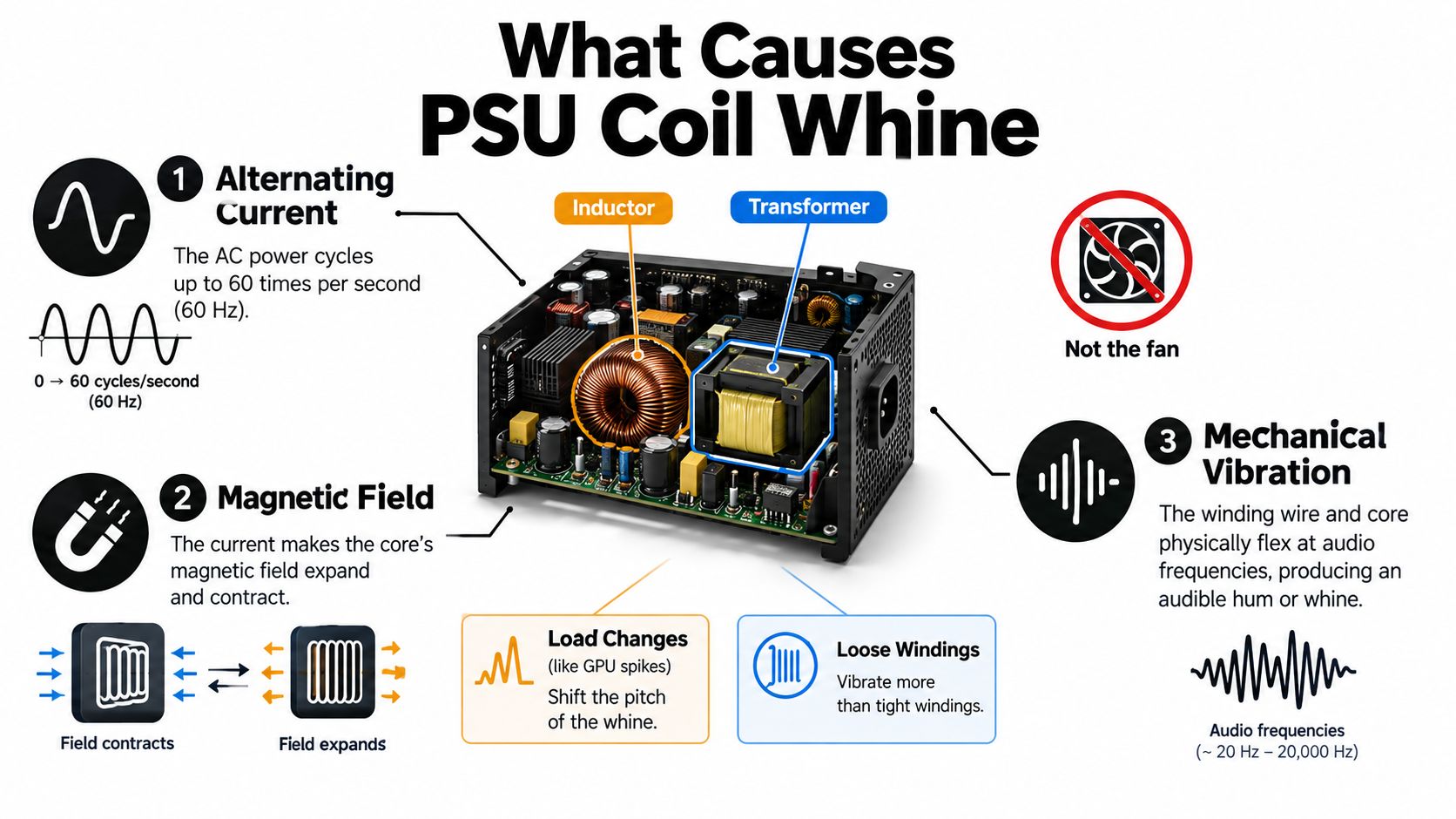
Why the sound is sharper than fan noise
A fan moves air across a broad range of frequencies. That produces a whoosh whose loudness usually follows fan speed. Coil whine is different. It often concentrates energy around particular tones, so you hear a narrow squeal, buzz, or chirp rather than general airflow.
The tone can also change as the PC changes jobs. The PSU's switching behavior, current ripple, and operating mode vary between idle, gaming, and sudden workload changes. A graphics card moving from a menu to a demanding scene may alter the electrical conditions enough to make a tone appear, disappear, or shift pitch.
Why the PSU may not be the source
Sound travels through the case and can reflect from metal panels. A GPU's voltage-regulator inductors may sound as though they're in the PSU, especially when both parts respond to the same graphics workload. The motherboard's power-delivery area is another possible source.
That's why the phrase PSU coil whine describes a likely location, not a confirmed one. The underlying phenomenon is component vibration. It isn't automatically evidence that the supply is failing or unsafe. Safety depends on the wider behavior of the computer, including stability, temperature, visible condition, and any smell or electrical event.
How to Diagnose Coil Whine Safely
A useful diagnosis separates three questions:
Where does the sound come from?
Which workload causes it?
Does anything besides the sound indicate a fault?
Start with the system in its normal position. If you can do so safely, remove the side panel and keep hands, tools, clothing, and cables away from moving fans. Listen from a short distance near the PSU, GPU, and motherboard area without touching components. Sound location is only a clue because the case can transmit vibration.
Record an idle baseline for approximately 5–10 minutes, as recommended in this non-invasive PSU buzzing diagnostic guidance. Note whether the sound is present, whether it's steady or intermittent, and whether the PSU fan is running. Record temperatures, fan RPM, and available CPU or GPU power readings as well.
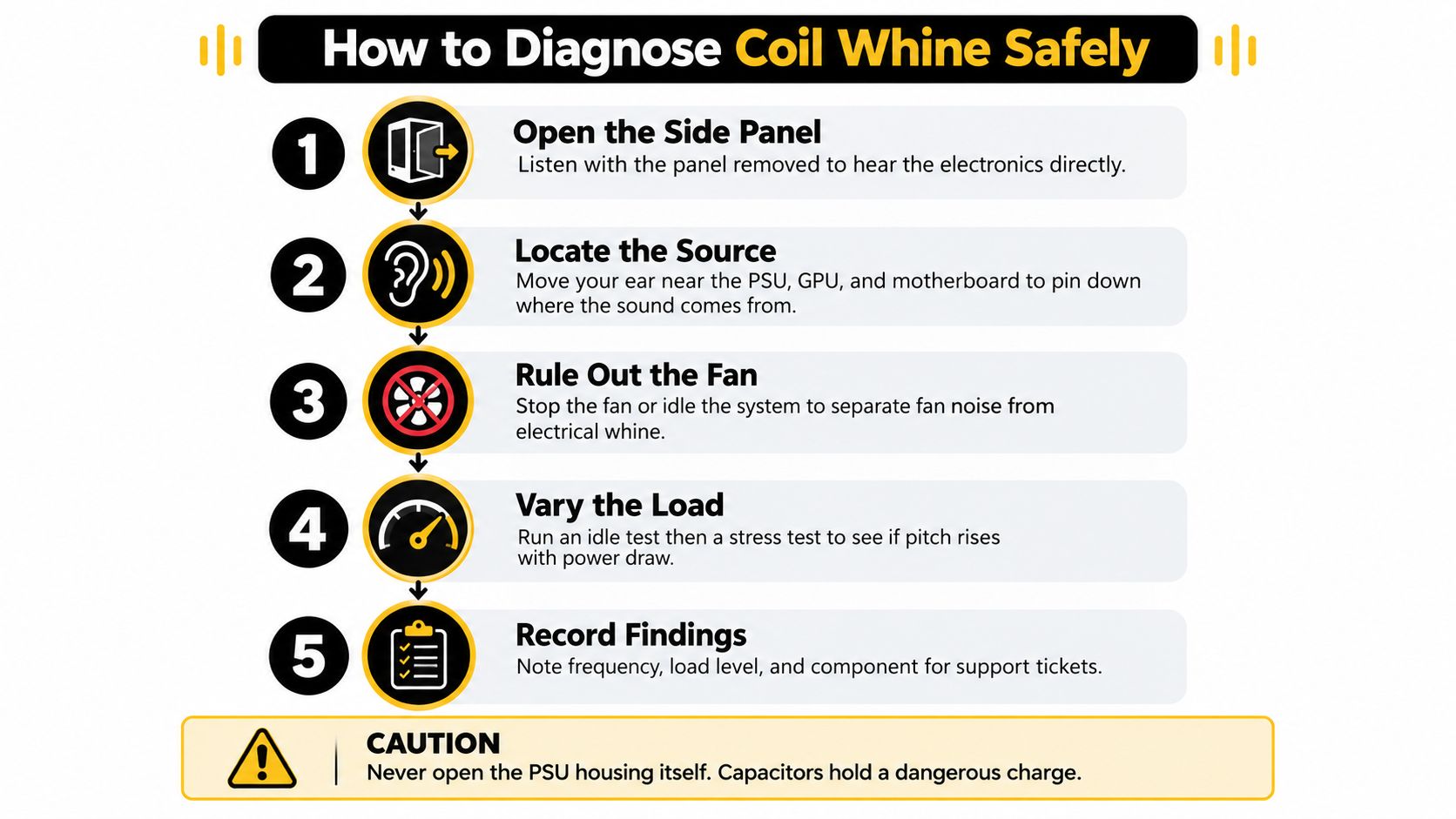
Change one workload at a time
Run a CPU-only workload, then a GPU-only workload, and finally a combined workload. You don't need to guess from one benchmark. The purpose is to see whether the tone follows a particular part of the system.
CPU-only activity: If the noise appears while the graphics card remains relatively quiet, listen near the PSU and motherboard power-delivery area.
GPU-only activity: If the tone starts or changes only during graphics activity, the GPU's own inductors may be responsible even when the sound seems to come from the PSU.
Combined activity: A sound that appears only when the whole system draws more power may point toward PSU behavior, although it still doesn't prove the PSU is the source.
Idle or BIOS operation: Noise that persists during low-load operation makes PSU electronics more plausible and deserves closer attention.
Watch for pitch changes when you enter a game menu, cap the frame rate, switch applications, or change the graphics load. A sound-level meter placed consistently at one metre can provide repeatable before-and-after comparisons. A phone app is useful for relative A/B tests, but room reflections, case resonance, microphone position, and background sound make it unsuitable as laboratory-grade data.
A known-good, correctly rated PSU swap is the strongest practical confirmation test, provided the swap is performed safely and all modular cables are compatible with that specific PSU. Never reuse modular cables from another supply unless the manufacturer explicitly confirms compatibility.
Never open the PSU. Don't insert a probe, screwdriver, cable, or any other object through its grille. Mains voltage and charged capacitors can remain lethal even after the computer is unplugged. A multimeter can reveal gross voltage behavior, but it can't identify the frequency of coil whine. Meaningful ripple or waveform analysis requires an oscilloscope and proper safety practices.
Harmless Noise or a Real PSU Fault
Loudness alone doesn't decide whether a PSU is healthy. A steady tone that tracks GPU frame rate or system load may be harmless, while a quieter sound accompanied by instability deserves immediate attention.
A useful distinction is sound alone versus sound plus abnormal behavior. A system that games normally, stays stable, and produces a repeatable buzz only under a particular load is usually dealing with an acoustic nuisance. A system that emits a new idle tone while shutting down, smelling burnt, or showing visible damage has a different problem.
The following triage table turns that distinction into an action.
Symptom pattern | Likely meaning | What to do |
|---|---|---|
Steady buzz appears only during a repeatable load | Benign electronic vibration is likely | Monitor it, then try load-based mitigation if it's distracting |
Pitch changes with frame rate or GPU activity, with no instability | GPU or PSU coil whine is possible | Cap the frame rate and isolate the physical source |
Noise follows fan RPM and sounds like airflow | Fan noise rather than coil whine | Check fan behavior and mounting without touching moving parts |
New sharp noise remains at idle | Abnormal PSU or another power-delivery condition is possible | Stop normal use and contact support |
Erratic pitch changes occur with crashes, black screens, or restarts | Noise is occurring alongside a stability fault | Power down and arrange diagnosis or replacement |
Burning odor, smoke, popping, visible damage, or damaged cables | Immediate safety concern | Stop using the system and replace or service the affected hardware |
These warning combinations matter more than the label “coil whine.” Community discussions such as this coil-whine safety discussion also illustrate the important point that coil whine by itself isn't a reliable failure predictor.
Stop rule: If you smell burning, see damage, hear popping, or experience shutdowns and instability, stop treating the sound as a harmless annoyance.
Don't apply glue, press on coils, or try to dampen anything inside the PSU. Those actions can create shock, fire, and warranty risks. If the sound is merely annoying, you can experiment with settings. If it arrives with electrical or thermal symptoms, skip experimentation and use the warranty or replacement path.
Why a Bigger PSU May Not Fix It
A bigger PSU sounds like the obvious fix. If the unit has more headroom, it seems like it should strain less and get quieter. In practice, wattage alone doesn't determine coil whine.
The reason is simple. The sound is not created by a wattage number on the box. It comes from a specific electrical part vibrating under a specific load pattern. That part might be inside the PSU, but it might also be on the GPU, motherboard, or another power-delivery stage. Two power supplies with different wattage ratings can behave very similarly if the same workload still excites the same component.
That is why PSU swaps can feel unpredictable. One replacement changes the pitch, moves it to a narrower load range, or makes it less noticeable. Another does nothing. A higher-wattage model may change how the system shares load, but it does not automatically silence the part that is making the tone.
Efficiency labels aren't silence guarantees
80 PLUS ratings tell you about efficiency. They do not promise an acoustic result. As discussed in this engineering discussion of regulating coil whine, coil whine depends on the interaction between component design, switching behavior, and load conditions. A premium unit can be quieter in one build and still make a noticeable tone in another.
So a better PSU can still be the right purchase. It may give you stronger overall electrical quality, better thermal behavior, the right connectors, and a cleaner match for future upgrades. If you're planning a system where the PSU, GPU, and cooling are selected to work well together from day one, see why custom-built desktop PCs are worth considering for your needs. Just keep your expectations realistic. Paying for more wattage or a higher tier does not buy a silence guarantee.
Use a mitigation ladder
Before spending money, change the condition that triggers the noise and see what moves:
Cap excessive frame rates: Menus and very light scenes can create the kind of electrical behavior that makes a tone stand out. A frame cap often helps when the GPU is involved.
Test another workload: Compare a game menu, normal gameplay, and a controlled benchmark. If only one case produces the sound, that points you toward the trigger.
Try a stable GPU undervolt: A careful undervolt can shift power behavior. Reverse it if you see crashes or visual errors.
Check cable compatibility: Reseat the cables that belong to the installed PSU. Never mix modular cables from different models.
Use return or RMA options: If the sound remains unacceptable after safe testing, replacement is a reasonable next step.
When to Use Your Warranty or RMA
Use warranty support when the sound is unacceptable, when a replacement unit is available under the seller's policy, or when the noise appears alongside red flags. You don't need to prove the internal mechanism. You do need to provide a clear, repeatable description.
Professional acoustic testing demonstrates why a single wattage checkpoint can miss the problem. The Cybenetics PSU test protocol applies at least 1,450 load combinations across the +12 V, +5 V, and +3.3 V rails. It also checks electronic noise in a hemi-anechoic chamber with a passively cooled load tester, which prevents fan noise from masking the tonal behavior.
Your home test won't reproduce that laboratory environment, and it doesn't need to. It should show the conditions that make the noise repeatable.
Build a useful support record
Capture a short video with the side panel open and the sound clearly audible. Keep the recording honest. Don't place the phone inside the case or touch the PSU grille to exaggerate the result.
Include:
System state: Idle, desktop, BIOS, game menu, GPU workload, CPU workload, or combined workload.
Load details: The application or test used and the approximate load level shown by your monitoring software.
Operating conditions: Ambient room conditions and whether the PSU fan was running.
Sound behavior: Tonal, intermittent, broadband, load-dependent, or present at idle.
Related symptoms: Crashes, shutdowns, black screens, overheating, odor, damaged connectors, or no other abnormal behavior.
Comparison evidence: A consistent before-and-after recording or a relative sound-meter reading from the same position.
A phone sound-meter app can help compare two units, but don't present its reading as laboratory-grade absolute data. Support teams need the pattern more than a suspiciously precise number.
Describe the requested remedy
Say whether you want troubleshooting, a replacement, or an inspection. If the PC is a prebuilt system, provide the full system identifier and explain whether the sound was present from first use or appeared later. A builder that records stress testing and shipment validation can compare your report with its pre-shipment results.
If you're working with a system integrator, use its support contact page and attach the evidence in the format requested. Don't keep running demanding tests after a burning smell, popping sound, visible damage, or instability appears. Those signs justify stopping first and documenting second.
Your Coil Whine Action Checklist
When the noise returns, follow the same routine instead of guessing:
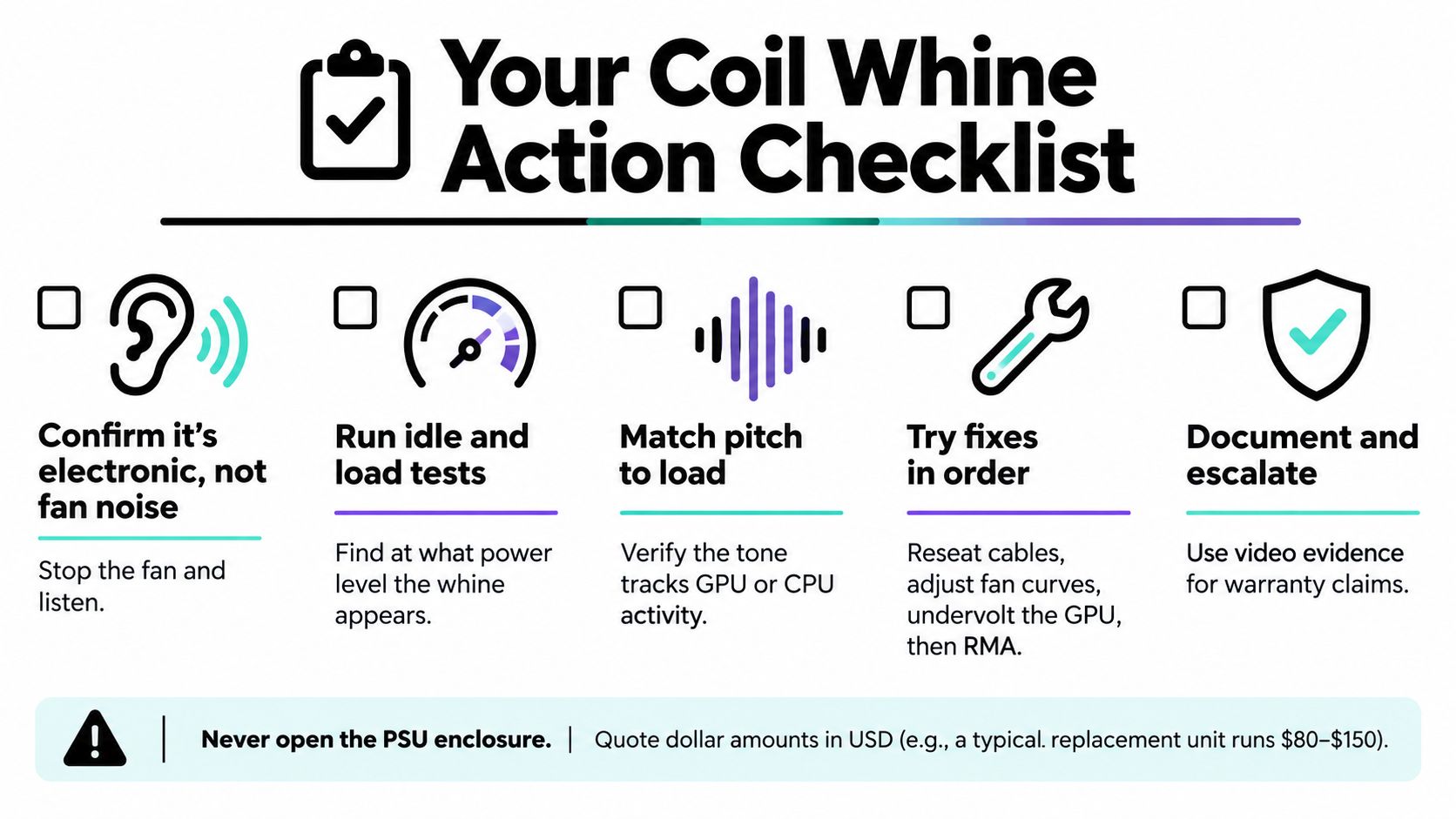
Confirm the sound type: Decide whether it's a tonal electronic noise, airflow, bearing noise, or vibration from the case.
Record idle behavior: Observe the computer for 5–10 minutes and note whether the sound continues.
Test separate loads: Compare CPU-only, GPU-only, and combined activity while recording temperatures, power, fan RPM, and pitch.
Try a low-cost change: Apply a frame cap, remove an unnecessary overclock, or test a different workload before buying hardware.
Escalate wisely: Use a known-good compatible PSU swap or warranty support if the source remains unclear or the sound is unacceptable.
Coil whine is a component-vibration quirk, not a verdict on your PSU's health. Replace the unit because the noise is unacceptable or because warning symptoms accompany it, not because a single squeal has made you panic.
Mild coil whine is annoying, but most systems with only that symptom continue to operate safely. Keep the diagnosis non-invasive, respect the PSU safety boundary, and let the combination of sound, load, and system behavior guide the decision.
ForgeOne designs and assembles built-to-order gaming, streaming, and everyday desktop PCs, with component matching, cable management, and pre-shipment stress testing. If you want a system selected and validated with noise, stability, and workload fit in mind, visit ForgeOne to explore its custom and preconfigured PC options.


Comments